Quick Start: Create a PDF with COM / Excel VBA
Create a product-label PDF from desktop Excel, then change its product name and run the macro again. This example uses the same layout and data fields as the other Quick Starts:
- Load the supplied
ProductLabel.tfflayout. - Provide
ProductNameandArticleNumber. - Generate the PDF.
Check the Prerequisites
You need desktop Excel on Windows with VBA available and the TFORMer SDK's COM component installed and registered for Excel's architecture (32-bit or 64-bit). See Windows installation. This example uses Excel's ThisWorkbook object; it is not an Excel-for-the-web, Word or Access macro.
Your organization's macro-security policy must permit the reviewed code to run. Do not disable macro security globally or enable programmatic VBA-project access for this example. If your policy blocks it, consult your administrator. Late binding needs no VBA project reference. The supplied layout uses Arial.
Download, Import and Run
Download the complete COM / Excel VBA example (ZIP) — includes ProductLabel.bas, the shared ProductLabel.tff layout and a README.1
- Extract the complete ZIP into a local folder. Keep
ProductLabel.basandProductLabel.tfftogether. - In desktop Excel, create a new blank workbook. Save it in that extracted folder as Excel Macro-Enabled Workbook (*.xlsm), for example
ProductLabel.xlsm. - Press
Alt+F11to open the VBA editor. In Project Explorer, select the project forProductLabel.xlsm, then choose File > Import File and select the extractedProductLabel.bas. - Open the imported
ProductLabelmodule. PressCtrl+Gto show the Immediate window. Place the cursor insideCreateProductLabeland pressF5, subject to your organization's macro-security policy. - The Immediate window shows
Created PDF:followed by the absolute output path. Copy the path after that prefix and open the PDF. Save the workbook to retain the imported module.
The macro finds ProductLabel.tff beside the workbook containing the imported module (ProductLabel.xlsm in these instructions). No layout path or field name needs replacement.
Check the Result
Each run creates a new temporary folder, leaving previous output unchanged. If the macro fails, it shows an error message instead of a success line.
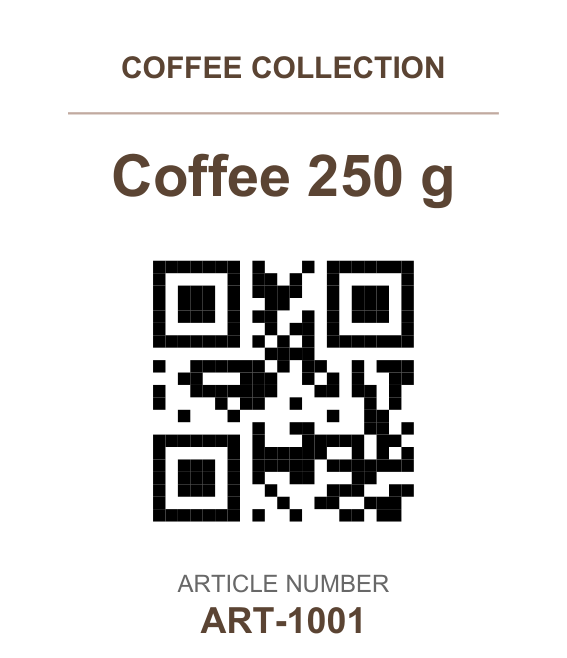
The label shows Coffee 250 g and ART-1001; its QR Code contains the same article number. This is an internal identifier, not an EAN, GTIN, or GS1 value. Without license configuration, TFORMer may mark the PDF as evaluation output.
Change the Product Name
In Excel's VBA editor, change Coffee 250 g in the imported ProductLabel module to another short name. Keep ProductName unchanged. Place the cursor inside CreateProductLabel, press F5 again and open the new PDF path. Save the workbook to retain your changes.
Edit the imported module, not the .bas file on disk: changing that file does not update the code already imported into Excel.
Complete Program
The macro supplies one data record, generates a PDF and releases its COM objects. Import the supplied .bas as described above; the listing omits only its module-name metadata line.
Show complete ProductLabel.bas
Option Explicit

Public Sub CreateProductLabel()
    Const PdfFileOutput As Long = 6
    Dim files As Object
    Dim tformer As Object
    Dim printJob As Object
    Dim jobData As Object
    Dim layoutPath As String
    Dim outputFolder As String
    Dim outputPath As String
    Dim failure As String

    On Error GoTo Failed
    If Len(ThisWorkbook.Path) = 0 Then
        Err.Raise vbObjectError + 1, , _
            "Save this workbook in the extracted sample folder first."
    End If
    Set files = CreateObject("Scripting.FileSystemObject")
    layoutPath = files.BuildPath(ThisWorkbook.Path, "ProductLabel.tff")
    If Not files.FileExists(layoutPath) Then
        Err.Raise vbObjectError + 2, , _
            "Layout file not found: " & layoutPath
    End If

    outputFolder = files.BuildPath(files.GetSpecialFolder(2).Path, _
        "TFORMerProductLabel-" & files.GetTempName)
    files.CreateFolder outputFolder
    outputPath = files.BuildPath(outputFolder, "ProductLabel.pdf")

    Set tformer = CreateObject("TFORMer9Lib.TFORMer")
    Set printJob = tformer.CreateJob
    printJob.RepositoryName = layoutPath
    Set jobData = printJob.NewJobDataRecordSet
    jobData.AddNewRecord
    ' These field names match the supplied ProductLabel.tff layout.
    jobData.SetDataField "ProductName", "Coffee 250 g"
    jobData.SetDataField "ArticleNumber", "ART-1001"

    printJob.PrinterType = PdfFileOutput
    printJob.OutputName = outputPath
    printJob.PrintForm
    If Not files.FileExists(outputPath) Then
        Err.Raise vbObjectError + 3, , "TFORMer did not create a PDF."
    End If
    If files.GetFile(outputPath).Size = 0 Then
        Err.Raise vbObjectError + 4, , "TFORMer created an empty PDF."
    End If
    GoTo CleanUp

Failed:
    failure = Err.Description

CleanUp:
    On Error Resume Next
    Set jobData = Nothing
    Set printJob = Nothing
    Set tformer = Nothing
    Set files = Nothing
    On Error GoTo 0
    If Len(failure) > 0 Then
        MsgBox "Cannot create product label: " & failure, vbExclamation
    Else
        Debug.Print "Created PDF: " & outputPath
    End If
End Sub
Continue in the API Guide
Continue with the COM and VBA guide for the general workflow and other automation hosts.
- Use your own layout and work with data.
- Print to a Windows printer or generate PDF output in memory.
- Apply a license and deploy on Windows.
-
When reading an offline PDF copy, keep its accompanying
downloadsfolder beside it so that the example link works. ↩