Quick Start: Create a PDF with TFPrint
This Windows command-line example creates the same product label as the API Quick Starts. It loads the supplied ProductLabel.tff, reads ProductName and ArticleNumber from an XML file, and generates a PDF. No compiler or layout creation is required.
Check the Prerequisites
Install the TFORMer SDK for 64-bit Windows, including TFPrint and its runtime files; see Windows installation. The layout uses Arial. For Linux commands and installed examples, see Linux.
Download and Run
Download the complete command-line example (ZIP) — includes ProductLabel.cmd, ProductLabel.xml, the shared ProductLabel.tff layout and a README.1
- Extract the ZIP and keep its files together.
- If the SDK is not in
C:\Program Files\TEC-IT\TFORMer9 SDK\Bin, adjust only thesdkBinline near the top ofProductLabel.cmd. - Open PowerShell in the extracted folder and run:
.\ProductLabel.cmd
The batch file calls the installed TFPrint executable with the layout, XML data and PDF output options. Keep the SDK's runtime files together; do not copy only TFPrint.exe into the example folder.
Check the Result
Open the PDF at the path printed after Created PDF:. Each run uses a new folder below your user temporary directory, leaving previous output unchanged. An error is printed if required files are missing or output fails.
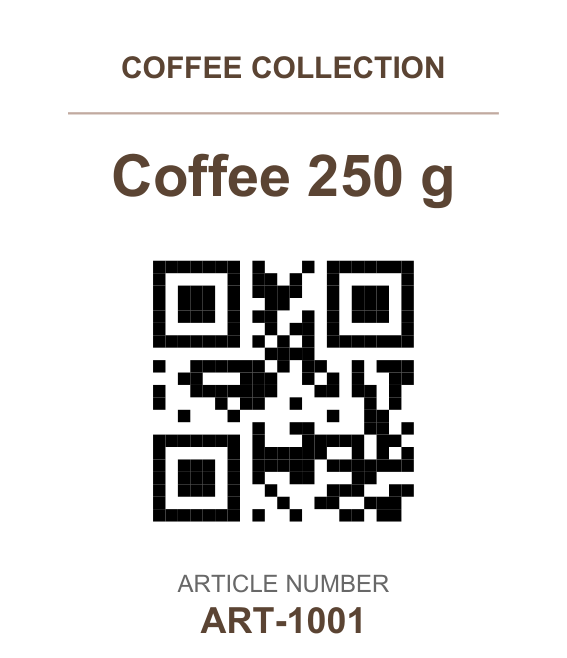
The label shows Coffee 250 g and ART-1001; its QR Code contains the same article number. This is an internal identifier, not an EAN, GTIN, or GS1 value. Without license configuration, TFORMer may mark the PDF as evaluation output.
Change the Product Name
Open ProductLabel.xml in a text editor. Replace only Coffee 250 g with another short name, save as UTF-8 XML, and run the same command again. Keep the XML structure and the ProductName and ArticleNumber field names unchanged:
<?xml version="1.0" encoding="UTF-8"?>
<PSData>
  <Form>
    <Records>
      <Record>
        <V Name="ProductName">Coffee 250 g</V>
        <V Name="ArticleNumber">ART-1001</V>
      </Record>
    </Records>
  </Form>
</PSData>
Complete Batch File
The script locates its input files beside itself, checks TFPrint's exit status and verifies that a non-empty PDF was created.
Show complete ProductLabel.cmd
@echo off
setlocal EnableExtensions DisableDelayedExpansion

rem Change this path if the 64-bit TFORMer SDK is installed elsewhere.
set "sdkBin=%ProgramFiles%\TEC-IT\TFORMer9 SDK\Bin"

if not exist "%sdkBin%\TFPrint.exe" (
    >&2 echo TFPrint.exe not found in "%sdkBin%".
    >&2 echo Edit sdkBin in ProductLabel.cmd to match your SDK installation.
    exit /b 1
)
if not exist "%~dp0ProductLabel.tff" (
    >&2 echo ProductLabel.tff not found beside ProductLabel.cmd.
    exit /b 1
)
if not exist "%~dp0ProductLabel.xml" (
    >&2 echo ProductLabel.xml not found beside ProductLabel.cmd.
    exit /b 1
)
if not defined TEMP (
    >&2 echo TEMP is not set. A writable temporary directory is required.
    exit /b 1
)
if not exist "%TEMP%\" (
    >&2 echo TEMP does not name an existing directory: "%TEMP%".
    exit /b 1
)

set /a attempts=0 >nul
:chooseOutput
set /a attempts+=1 >nul
set "outputDir=%TEMP%\TFORMerProductLabel-%RANDOM%-%RANDOM%"
mkdir "%outputDir%" 2>nul
if errorlevel 1 (
    if %attempts% LSS 5 goto chooseOutput
    >&2 echo Could not create a new output directory: "%outputDir%".
    >&2 echo Check TEMP permissions and run ProductLabel.cmd again.
    exit /b 1
)
set "outputFile=%outputDir%\ProductLabel.pdf"

"%sdkBin%\TFPrint.exe" -F "%~dp0ProductLabel.tff" ^
    -O "%outputFile%" -OT PDF ^
    -D "%~dp0ProductLabel.xml" -DT XML
if not "%errorlevel%"=="0" (
    >&2 echo TFPrint could not create the product-label PDF.
    exit /b 1
)
if not exist "%outputFile%" (
    >&2 echo TFPrint did not create "%outputFile%".
    exit /b 1
)
for %%F in ("%outputFile%") do if %%~zF EQU 0 (
    >&2 echo TFPrint created an empty PDF: "%outputFile%".
    exit /b 1
)

echo.
echo Created PDF: "%outputFile%"
exit /b 0
Continue with Basic Workflow, Command Groups, additional PDF and printer examples, or Apply a License. The TFPrint Command-Line Reference is the complete command and parameter reference.
-
When reading an offline PDF copy, keep its accompanying
downloadsfolder beside it so that the example link works. ↩